



Set up voice chat
Voice chat in Watch2Gether rooms runs on your own free Tencent RTC keys. Setting them up takes about five minutes, once, and only the host ever needs to do it.
The short version
When you create a room, paste in two values from a free Tencent RTC account: an SDKAppID and a SecretKey. Everyone in your room then gets voice chat with no setup on their side. Skip it and the room is text chat only.
The free tier is 10,000 minutes every month and it renews. Minutes count per person in voice, so a two-hour movie night with four friends talking uses about 480 of them.
Getting your keys
Sign up
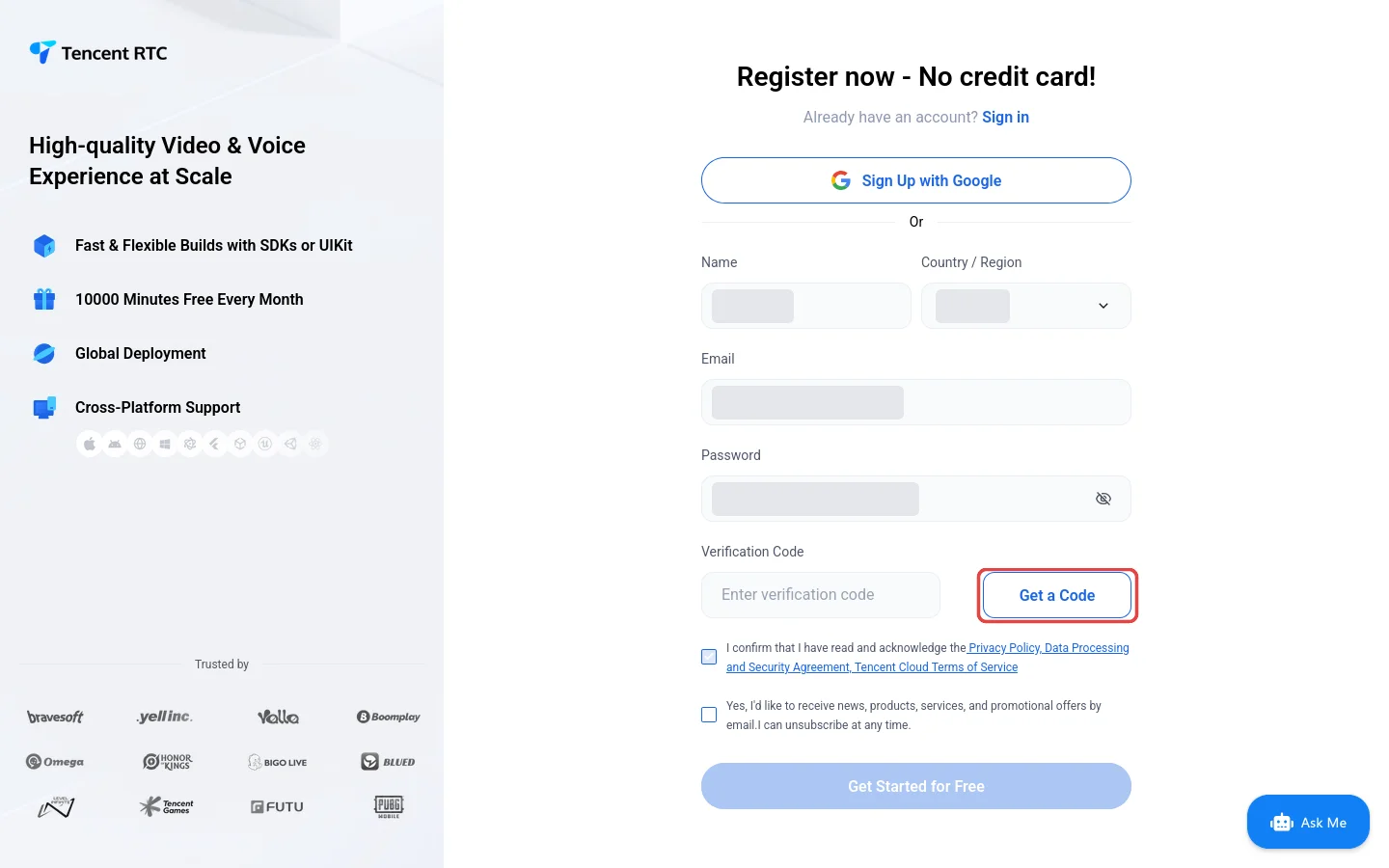
Open trtc.io and press Get Started in the top right. No card, no payment. Fill in a name, your country, an email address and a password, then press Get a Code. Solve the small click-the-icons puzzle and Tencent emails you a verification code.
Type the code in, tick the agreement box and press Get Started for Free. Your account is ready and you land in the console at console.trtc.io.
Pick your use case
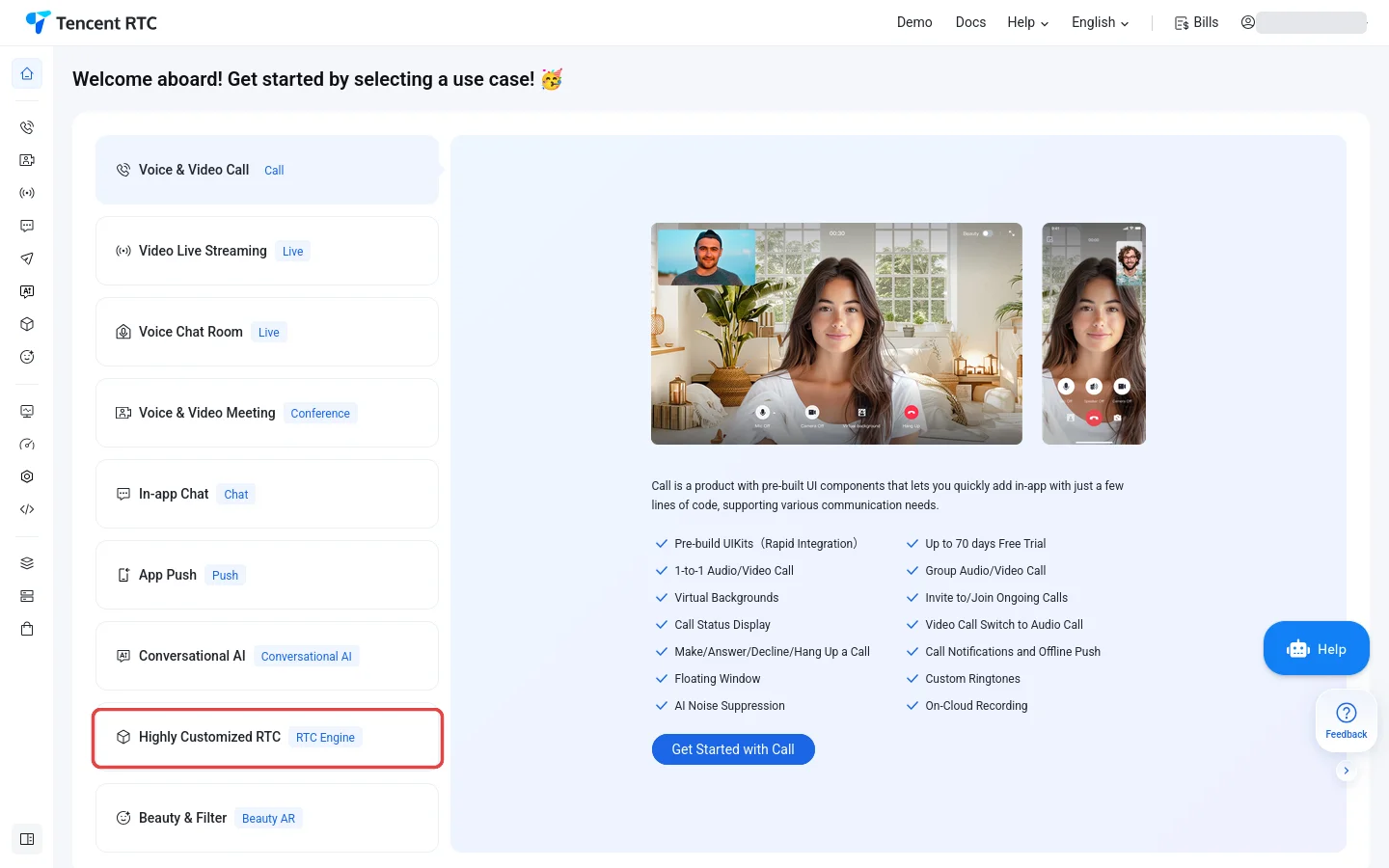
The first login shows a welcome screen asking what you want to build. Pick Highly Customized RTC near the bottom of the list (it has the RTC Engine tag, the one our rooms use), then press Get Started with RTC Engine.
Closed it by accident? Dashboard in the left sidebar brings you back.
Create the application
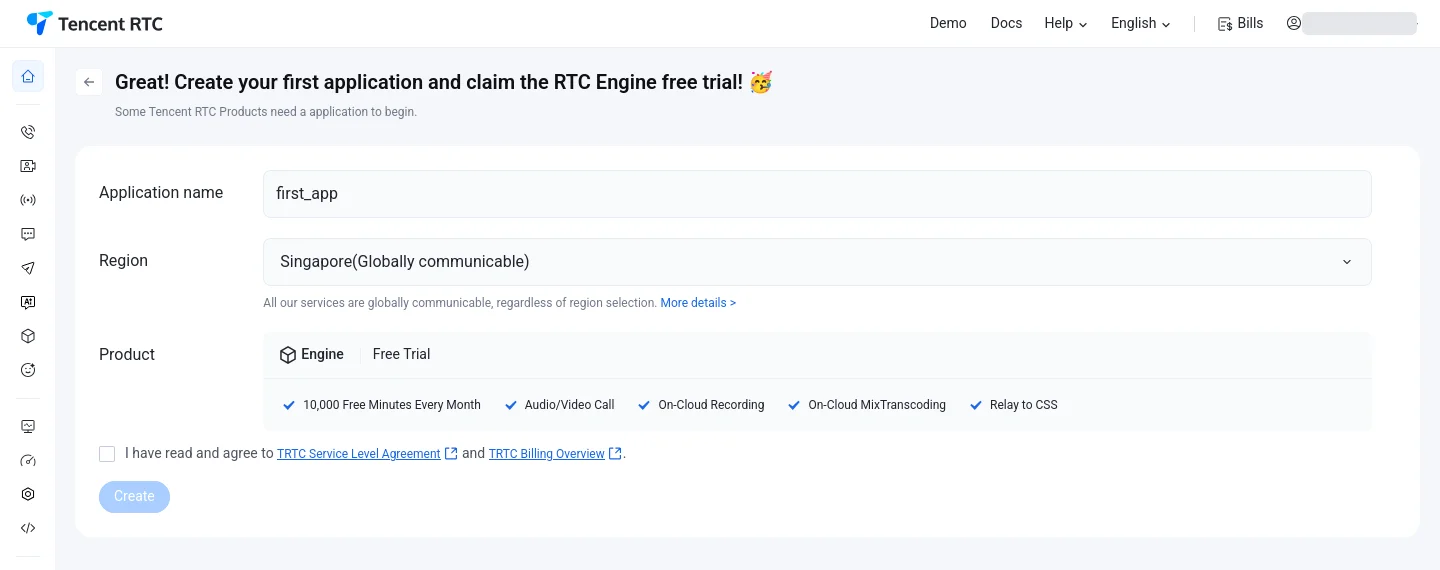
Name the application anything up to 15 characters (letters, digits and underscores only) and keep the region it suggests: every region works worldwide. The product is already set to the Engine free trial with 10,000 free minutes every month.
Tick the service agreement and press Create.
Copy your two keys
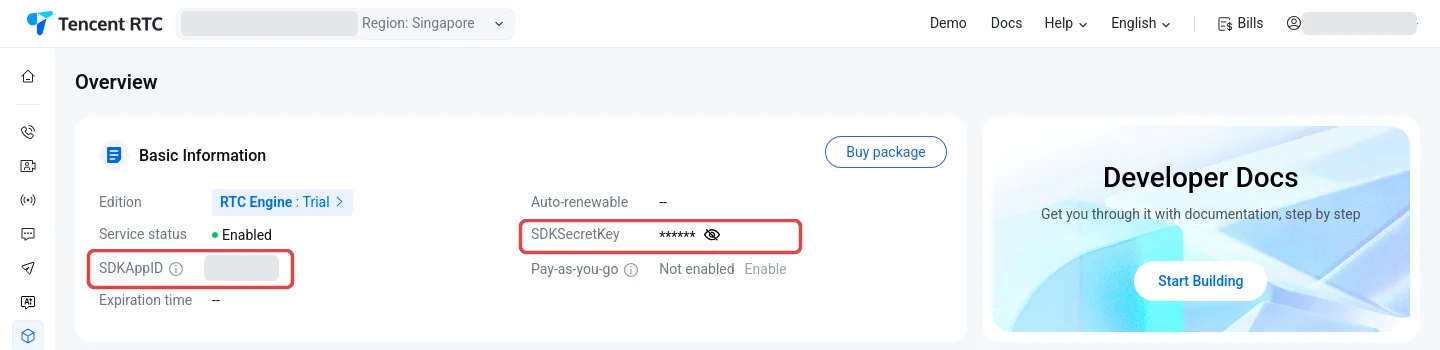
You land on the RTC Engine Overview (later: sign in at trtc.io and pick RTC Engine in the left sidebar). The Basic Information card holds both values: the SDKAppID, a number, and the SDKSecretKey behind the eye icon. Click the eye to reveal the key, then copy both.
Treat the SecretKey like a password. Anyone who has it can spend your free minutes.
Paste them into your room
On HiAnime, open the episode you want to watch and create a Watch2Gether room as usual. Turn on Voice chat and paste the two values into the SDKAppID and SecretKey fields. That is the whole setup.
Everyone who joins your room gets voice chat automatically, on the website and in the app. Your friends never need keys or accounts, and the same two keys work for every room you host.
Using voice in a room
Rooms with voice chat show a Voice chat bar next to the room chat. Signed-in members can join it; the first time you talk, your browser asks for microphone access, so press Allow.
Good to know
- Only the host needs keys. Everyone else just presses Listen or Talk.
- Your SecretKey is kept only while your room exists and is deleted the moment the room ends. Nobody is ever shown it, not even you.
- The same two keys work for every room you host. Keep them somewhere safe and paste them each time.
- If joining voice says the keys look invalid, one of the two values was pasted wrong. Check them in the Tencent console and create the room again.
- Running low on free minutes? They reset every month, and the usage page in the Tencent console shows where you stand.
- No sound or "microphone access denied"? Allow the microphone for this site in your browser settings (the lock icon next to the address bar), then join voice again.